
 5:02
VIDEO · AI & podcast clips
(3) Advanced Podcast Editing Tactics for Descript
Get Descript for Free - https://bit.ly/descript-free
VIDEO · AI & podcast clips
Get Descript for Free - https://bit.ly/descript-free
The YouTube player loads only when you press play. Prefer YouTube? Watch there ↗
Get Descript for Free - https://bit.ly/descript-free
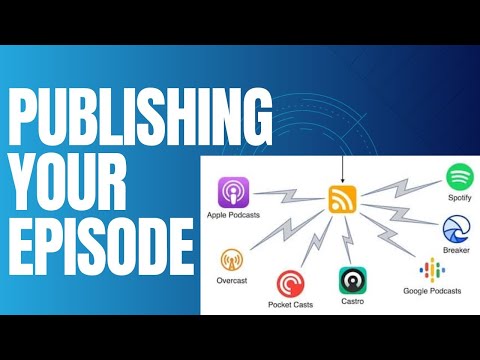
hey y'all so in this video I want to talk about some really cool features that the script has in makes it really easy for podcasters and might save you some time as well I'm going to talk a lot about this publish Tab and I remember I mentioned in the beginning of this video If you haven't seen all the videos go back and watch them that I really enjoy classic mode from the script and classic Mode it just I I like it more and one of the reasons why is because they have this publish button which is not maybe it's somewhere on storyboard but it's not as easy to find and there's a couple of things here the first thing that I'll talk about is this let's talk about this export tab up here now what I really love about the script is that you can now take this project and you can put it in a lot of different places so if you want to turn it into a web page you can actually turn it into a web page that will allow you to just
publish it and let's take a look at this because it just publishes it and now if you want to send this to somebody if you want to share this with somebody you can do that I'm going to open this up here on a different tab and so now we've got our published video right there right our published transcript people can make comments it's a great way to share and collaborate stuff with stuff so that is uh that's a big part of it too the other thing that you can do though if we go back here to this exports tab you can turn it into an audiogram so they can make it into a video and you can turn it into um those cool little videos and they'll you know make it in the right sizes and it'll just do it based on your transcript so that's really cool uh what else can you do on here what I like about is you can send it straight to Youtube if you want so this is great you can just upload straight to Youtube you
can also upload to any of these hosting providers so we're a big fan of captivate but you can also upload to all of these hosting providers and so it'll just drop it right into your provider which is really kind of cool you can export it in all the variety of capacities you can just export the videos I really like you can turn it into a gif obviously an audio and then it gives you all of the different features and settings that you need to you know make it sound the best so it'll normalize the volume your bit rates all the things that are important for getting it out there right same thing with video your Dimensions your samples your your quality all those options are here and then even if you want to do further editing what's also really cool is that you can throw it into something like you know your Reaper or Pro Tools um if you guys use the Adobe suite all those are here and so it makes it really
easy to just export those projects right into there so you can continue the work as well hopefully that gives you guys just some some insight on how to utilize it and leverage it go back if you haven't watched all the rest of the videos in the series and of course if you have questions make sure you let me know
5:02
VIDEO · AI & podcast clips
Get Descript for Free - https://bit.ly/descript-free
 12:21
VIDEO · Podcasting
Ashley Morris from Progressive Media provides actionable strategies for defining and targeting your ideal audience, which is essential for improving the quality of your podcast and building a loyal listener base.
Let’s chat about utilizing content to increase your visibility and strengthen your industry connections.