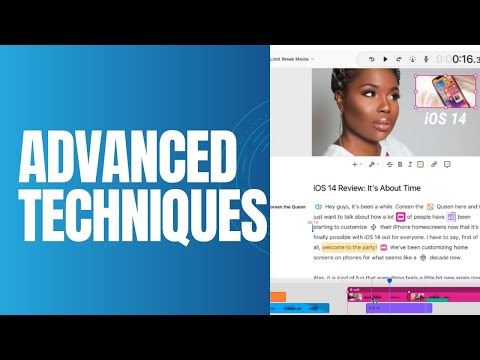
hey so in this video we are going to talk about some Advanced editing techniques in the script that you can use to edit your podcast and so one of my favorite tips to do is to listen at Double speed and I really like this because what's nice is that you have the text there and so if you go up here you can actually increase the speed to 2X and I believe you can even even to 3x there I I don't really listen at 3x but 2 is a good thing but I'm doing our job okay two is a good way it works and what I'm doing here is I'm trying to find if there's any big things that I need to cut out right you know if there's any big sections if there's any any major hiccups things like that really allow me to go through television because I listen at Double speed right now what I'll do is afterwards I will go through and turn that back down to single speed I'll turn that back down and I'll go through and I'll listen and make sure
that the individual transitioning all sound good if they need to be adjusted a little bit but I'll skip ahead to each of these so that way I'm listening at Double speed for to make sure that the big chunks are there and are are correct and then I go through and listen at single speed to make sure that the important I don't say important but the parts where it may jump or the parts where it's really likely to kind of be funky are gonna sound good and so that's how you can leverage the AI because on the last video we talked about using the scripts filler words and their filler word you know tool engine is fantastic but it's not perfect in the sense that there are some things that it misses there are just some filler words that it does Miss of course it's not perfect but then it tends to cut off parts of the word or what I've noticed is that if there is a part that it doesn't recognize before or
after that filler word it'll also cut that off too and sometimes it ends up cutting off an extra part of a word so going through and listening at Double speed to get out any big chunks or any places where you know they had made mistakes or had to re-ask the question or took a break or whatever it is and then you can go through and fine tune at single speed with the this track by adjusting and you can pull this over left and right to make sure that it sounds good so that's one tip another tip that I like to use is they have these little tools here you have your your range tool and so you might want to cut out a section you have this blade tool where you might you know want to clip things and pick out a certain part and so that's also handy to note there's another thing in here that I like to use called Studio sound and so Studio sound is great for people who don't want to spend a lot of time
editing the audio and kind of fine-tuning the sound it can be a lot sometimes it can get really bogged down but what you can do is you can apply the studio sound and it's it's AI right it's it's artificial intelligence it's a it's a computer that's going to do its best to try and it's it's it knows what something should sound like and it's going to try and do its best to make your sound like that and sometimes it works amazing and sometimes it doesn't and sometimes it's terrible so that's something for you to know the way to get there is you go to add effect you go to Audio Repair and the studio sound and the thing is is what it's going to do is it's going to apply it to the whole file so if you guys have multiple tracks in your and you have different audio files for different speakers then what it can do is it can do it to just one of those speakers but if you recorded everything and you happen to use a platform that
only gave you one file for your audio then what's going to happen is it's going to do it for the entire file and sometimes that's great A lot of times that's not though and so one other thing that you can do is you've got a lot of tools in here if you know how to how to use this stuff you've got your compression one thing that I like to use is this parametric equalizer and you can see that it's got different settings and I really like these different settings and I I develop from using some of these settings and playing around with these settings what I like to do is just something really simple and I'm no engineer I'm no editor but I found that just dropping these two and so that way the sound stays in the middle can you get rid of those really low and really high frequencies tends to be to make it sound better and so just play with that see if it sounds better to you if it does keep it if it doesn't
don't use it same thing with Studio sound if it works great if it doesn't don't use it but that's another thing that you can utilize to edit it as well so hopefully those tips made it a little easier for you once again if you watch the rest of the videos in the series I think it'll all make sense as they come together and then if you've got any questions please please please reach out so we can go a little deeper see on the next one

 12:21