
 5:31
VIDEO · Notion & AI systems
VIDEO · Notion & AI systems
The YouTube player loads only when you press play. Prefer YouTube? Watch there ↗
congratulations you made it to the third video and you're so close to having your show note automation set up and there's just a few things that will need to get set up before you'll be once again Off to the Races and what's really cool is that once you have this set up you can customize it for your show and create anything you want for your podcasts your show notes your social media whatever your heart's desire so let's get into how we set this thing up okay so let's dive in if you chose zapier the first thing that you'll want to do is you'll want to go over to your apps and just make sure that you've got your connection so you'll click add connection and here's where we'll put chat GPT here's where you'll add your API Keys you'll also want to make sure that your Google Drive and your Google Docs are connected as well that's what you'll want to do in zapier over here in make similarly I'll just add my
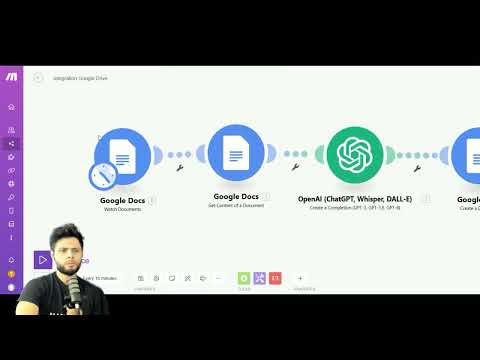
connection in here and uh make sure that I have my Google Drive and also my open AI connection added and uh and verified now once I've got those set up I'm going to stick here and make just so that you guys can see how they are similarly set up so in my scenario you'll see that the way that it works is we are going to watch for a Google doc and then we're going to grab the content of that Google doc and then what we're going to do is we're going to send that content to chat GPT with uh a particular prompt and then we're going to have Google Docs create a new document with the show notes and transcripts and so I'm just going to walk through it here and then we'll go through how it works on zapier because it's pretty much the same thing and so what I can what what you'll want to do is if you just go to scenarios and you create a new one here's what you're going to do is you're going to just upload and import your
blueprint so you'll just be able to choose your file and and here's my show notes blueprint file and if I click that file and I save that there it should just drop it right in for me and so now all I'll need to do is I'll click in here and I'll update the things that I have so I'll uh watch documents by created date I'll make sure that it's choosing my drive and so then the next part is where you'll choose your folders and it'll allow you to use utilize a drop-down of those and so you you can see here that at each point um I can choose kind of my main ones and then it might allow me to choose another folder a subfolder within there so you can get really granular with where you want it but you want to pick the folder that we set up uh for us to be able to watch and then what we're going to do is in make we have to do one step where we have to get the content of this Google doc it doesn't automatically have that so we're
going to have to get the content here what you'll see is that we'll need to grab the document ID of the first step so when you get this first one set up what's good to do is to click this this run once uh button over here and um kind of behind my head if it's if it's not showing and then what you'll be able to do is to add in that information but it should carry over if it doesn't you can reach out for support but we're going to get the content all we need to do is add in the document ID and here's where you can customize it to get not only show notes but whatever it is that you want and so in our document this template what it's going to give you is it's going to give you title options it's going to give you an episode summary if you have a guest it's going to try and summarize the guest as well as it can as well as find any links that it mentions and then it'll also write some social media posts for you as well
so that's what it's going to spit out right and then you'll see that it says here is the transcript for the episode and it'll carry the content right the words from the Google Doc that we pulled out and then afterwards what it's going to do as we'll see in here I created some some different things to personalize it a little bit basically it's just going to take the title of the document and then I added show notes on here and then it's going to spit out the content of whatever I got and the way that I found that is in here if I go to choices I click down here into message I'll see my message um I click this content button right there and that's what that would give me and you'll see that it just duplicated it so we'll delete that and you'll see that the second I'll also choose where I'm going to put it so I'll choose my Google Drive folder and it'll drop it in right there so let's hop over to zapier and
let's take a look at this because you'll notice that we have pretty much the same things so we've got got a new document in here so that's all it is that we're watching the the the do new document and so if I edit it let's hop in here and same thing what you'll do is you'll make sure that you set up the trigger so I have my Google Docs I'm looking for a new document in a folder and then where I'm going to go down here is I'm going to choose my folder here in the transcripts in the trigger section I'll continue I can test that and then down here in the conversation very similar to make I'll choose chat TPT all that should be in there and then if I look down here at action I've got the same thing kind of filled in I've got please create my show notes I want my titles I want an episode summary I want a guest bio social media posts and then I want it grabbing the content from the document and you'll see that that
zapier is already able to grab that there's a couple of things that um are already filled out don't have to you shouldn't have to worry about it but then you click continue you can test it and then similarly we're going to create another document in here what you'll do is you'll go into your action you can edit this as you like but it should be in there and carry it over to where it's grabbing the response and the reply from chat GPT and then dropping it in the folder that you want so let's just go ahead and let's see if we've let's test this here okay so you'll see here that the message that we sent to g chat GPT is the request that we sent had the normal request that we had that you can obviously edit for yourself and then you'll notice that it had also it has the transcript here that we added and so what we got back if we scroll all the way past this long transcript what we got back is our title
options here are our title opt options here are episode summaries and so on and so forth and so what's going to happen is that it's going to drop all this into a Google Document and so similarly we can test this here let's retest this it should give us a kind of a URL if you will uh let's see if we can grab this URL okay so here is that summary that we got we've got our title options we've got our summary we've got our guest bio now one thing that you'll want to do is you want to go through and make sure that you edit some of the stuff for obviously you'll need to put in the links you'll also need to adjust any spelling and stuff but this should get you 80% of the way and of course if you add in that you want a blog post or you want an email newsletter or you want social media posts you can use the prompts that we'll give you uh to also add in there and and customize those as as well and so you'll see that that gets
us about done we have one more thing on the zap which I like to have something on here that notifies someone on our team that the show notes are done and you can change this to an email you can delete it uh you can uh change it to some other way to notify you or if you use some other project management system I've just found that it's helpful because sometimes these things can take a couple of minutes uh to be able to run and so it's helpful to to just get a notification when uh when they're all done the last thing that you'll want to do is you'll just click this publish button and then you will be Off to the Races okay so you should be all set up if you have any questions reach out to me and we'll figure it out and we'll get you all set up but on the next video I want to show you some really cool ways that you can utilize AI to essentially supercharge your podcast so check out that on the next video
5:31
VIDEO · Notion & AI systems
 3:12
VIDEO · Notion & AI systems
Let’s chat about utilizing content to increase your visibility and strengthen your industry connections.